
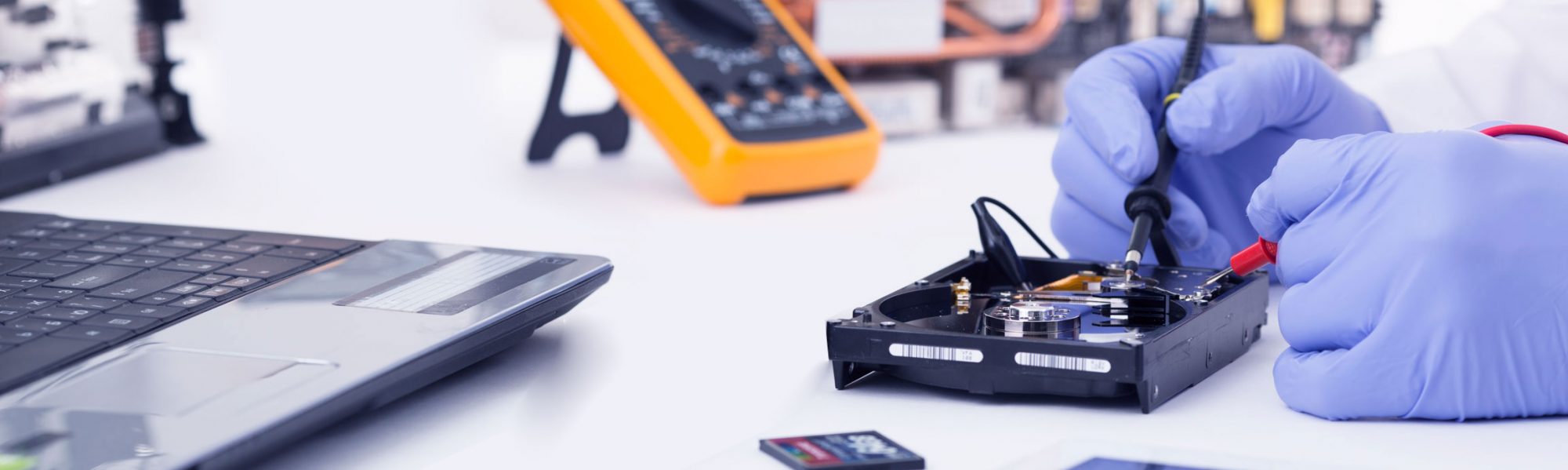
It’s the call we get most often: “My laptop won’t turn on and everything is on it.” The good news is that a laptop that won’t power up is rarely dead, and your files are almost never lost. Most of the time it’s one of a handful of causes – and several of them you can rule out at home in ten minutes before you drive to a repairer.
Here are the seven checks we run first at our Bentleigh East workshop, in the order that finds the problem fastest.
1. Is it the charger, not the laptop?
Look for the small charging LED near the power port or on the charger brick itself. No light at all usually means the charger or the cable has failed – one of the most common faults we see, especially on chargers that have been bent at the plug end. If you have access to another charger of the same brand and wattage, try it. If the LED comes on with a different charger, you’ve found the problem for under $100.
2. Do a hard reset
Laptops can get stuck in a “sleep” state where the power button appears to do nothing. Unplug the charger, hold the power button down for a full 20–30 seconds, then plug the charger back in and press the power button once. On older laptops with a removable battery, take the battery out first. This clears the embedded controller and fixes a surprising number of “dead” laptops.
3. Listen and look for signs of life
Press the power button and watch and listen carefully:
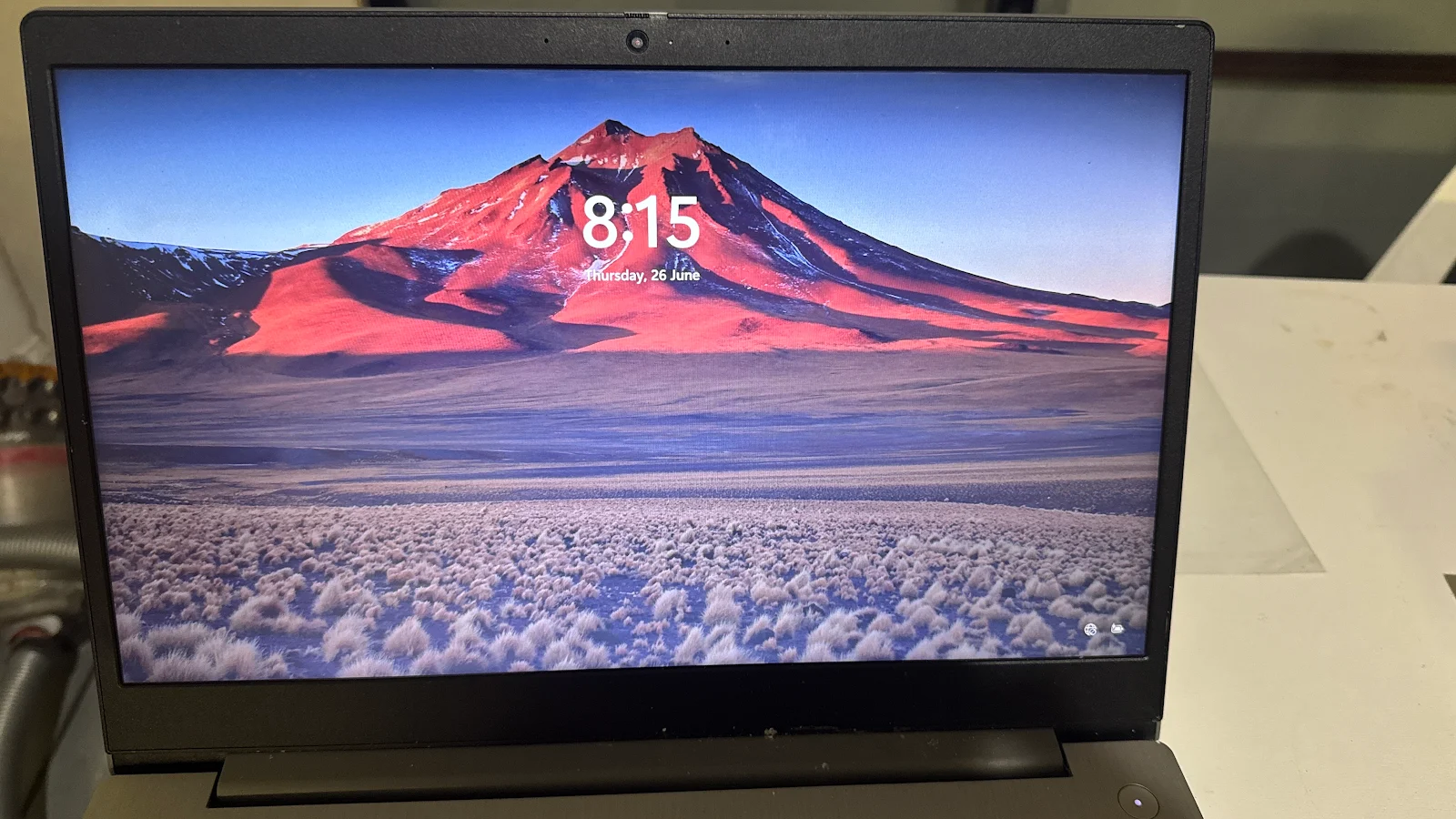
- Fan spins, lights come on, screen stays black – the laptop is powering up but the display isn’t. That’s a screen, display cable or graphics issue, not a dead laptop. Jump to check 5.
- Lights flash in a pattern or the laptop beeps – that’s a diagnostic code. On HP, Dell and Lenovo the blink/beep pattern points to RAM, motherboard or CPU. Count the flashes and tell us when you call.
- It turns on for a second then off again – usually a power circuit or short on the motherboard, sometimes a failed battery. Stop trying; repeated power cycling can make it worse.
- Completely dead, no lights at all – charger, DC-in jack or motherboard power circuit.
4. Check for liquid or heat damage
If a drink was spilled on or near the laptop recently – even a few drops – do not keep trying to power it on. Liquid damage gets worse every time current flows through a wet board. Unplug it, remove the battery if you can, and bring it in as soon as possible. The same applies if the laptop was very hot before it died, or if you can smell burning.
5. Test the screen with an external monitor
If you can hear the fan or see the keyboard backlight but the screen is black, connect the laptop to a TV or monitor with an HDMI or USB-C cable and press the display key (often Fn + F4, F5 or F8, or Windows key + P). If the picture appears on the external screen, the laptop is working – the fault is the built-in display, and that’s a same-day screen or cable repair. Shining a phone torch at the dark screen is another quick test: if you can faintly see the desktop, the backlight has failed.
6. Remove anything plugged in
A faulty USB stick, external drive, dock or even an SD card can stop a laptop from completing its power-on self-test. Unplug everything except the charger and try again. On desktops the same goes for a bad USB keyboard or a dying external hard drive.
7. Is it actually the battery?
A swollen battery pushes up on the trackpad and keyboard and can prevent the laptop from powering on at all. Look for a trackpad that no longer clicks properly, a case that doesn’t sit flat, or a gap appearing along the edge of the lid or base. A swollen battery is a safety issue – don’t puncture it, don’t keep using it, and bring the laptop in with the charger. Battery replacement is one of the quickest repairs we do.
What it usually turns out to be
| Symptom | Most likely cause | Typical fix |
|---|---|---|
| No lights at all | Charger or DC jack | Replace charger / repair charging port |
| Lights on, screen black, external monitor works | Screen or display cable | Replace panel or cable – same day |
| Turns on then off | Motherboard power circuit or battery | Board-level repair or battery |
| Blink / beep codes | RAM or motherboard | Reseat/replace RAM; board repair |
| Trackpad lifting, case bulging | Swollen battery | Battery replacement – same day |
| Recent spill | Liquid damage | Clean and repair board; recover data |
Your files are almost certainly fine
None of the faults above affect the storage drive. Even when a motherboard is beyond economical repair, we remove the drive and copy your photos, documents and emails to a new laptop or an external drive. If the laptop is more than five or six years old, that is often the sensible option – we’ll tell you honestly which way to go.
When to bring it in
If the charger test and the hard reset haven’t brought it back, it’s time for a proper diagnosis. At Melbourne IT Services in Bentleigh East the diagnosis is free: we test the charger, battery, screen and board, tell you exactly what’s wrong and what it will cost, and only go ahead when you say so. Most screen, battery and charging-port repairs are done the same day while you wait; board-level repairs usually take a day or two.
- Call or text: 0421 388 876 – text your laptop model and the symptom for a quick answer
- Address: 2 Bellevue Rd, Bentleigh East VIC 3165 – 10 minutes from Brighton, Caulfield, McKinnon, Ormond, Moorabbin and Cheltenham
- Hours: open 7 days, 5am–11pm
- Bring: the laptop and its charger – no password needed for most repairs
Related reading: Laptop turns on but the screen stays black · Cracked MacBook screen with coloured lines · Slow or crashing Mac.
