

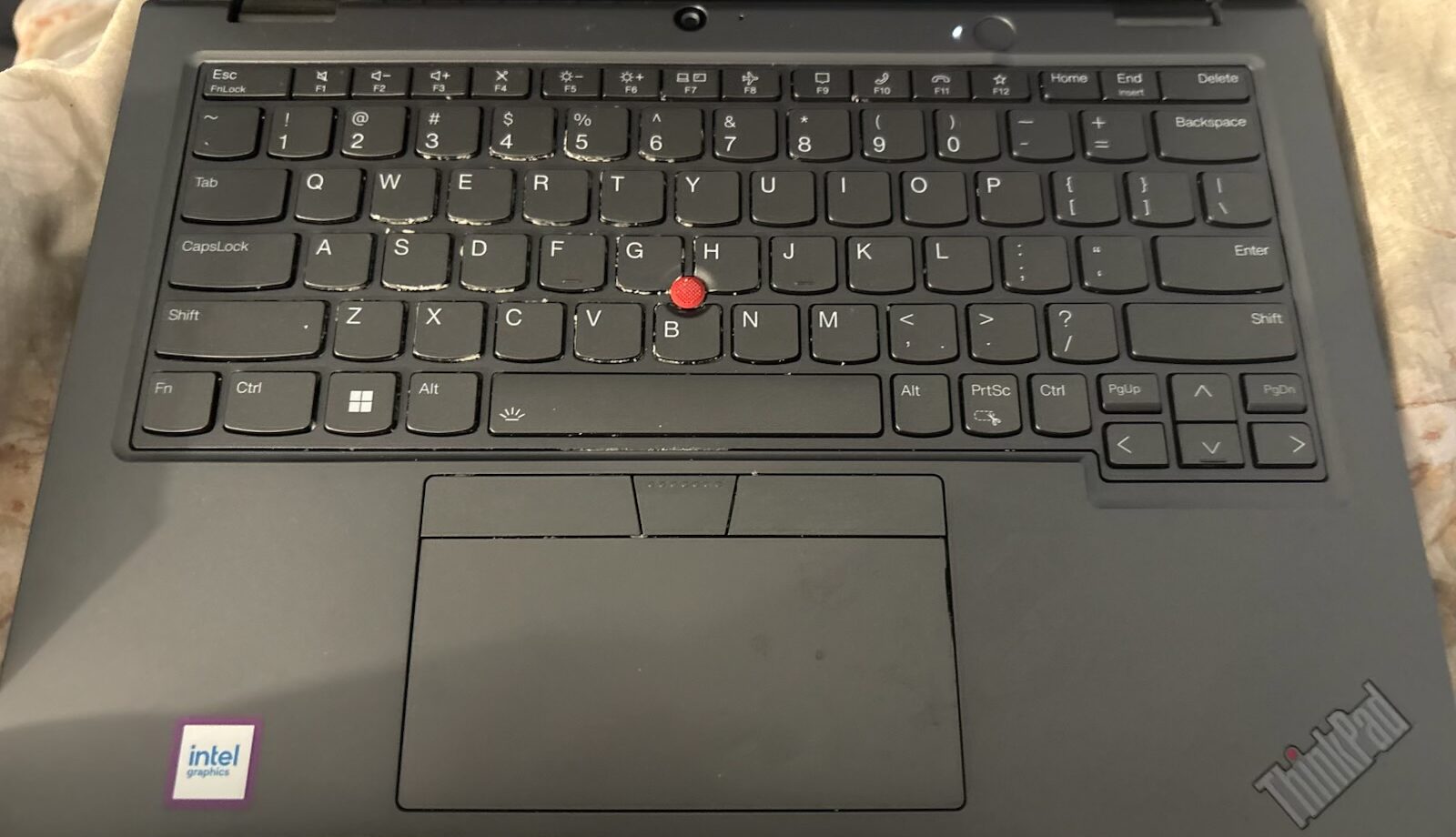
A laptop trackpad that stops responding, clicks on its own or sends the cursor skating across the screen is one of the more irritating faults we see at the Bentleigh East workshop, mostly because it turns a perfectly good laptop into something you have to fight with. The good news is that a surprising number of trackpad problems are settings or software, and the hardware repairs are usually quick when they are needed. Here is how we sort them out.
Common symptoms and what causes them
Trackpad faults tend to fall into a handful of patterns, and the pattern tells us a lot before the laptop is even opened:
- No response at all – the pad has been disabled with a function key, the driver has been lost after an update, or the ribbon cable underneath has worked loose.
- Cursor jumping or drifting – palm contact while typing, a damp or greasy pad surface, or a swollen battery pressing up from below.
- Clicks on its own (ghost clicks) – moisture under the pad, a battery that has started to swell, or a pad that has physically cracked.
- Won’t physically click – debris under the edge of the pad, a bent chassis after a drop, or a battery pushing the pad up so there is no travel left.
- Gestures missing – two-finger scroll and pinch-to-zoom need the proper precision driver; a generic mouse driver only gives you basic pointing.
What to try at home first
Before you bring it in, run through these. They cost nothing and fix roughly a third of the trackpad laptops we are asked about.
- Look along the top row of keys for a trackpad icon (often F5, F7 or F9 on Dell, HP, Lenovo and ASUS laptops) and press it with the Fn key. People disable the pad by accident all the time.
- Open Settings > Bluetooth & devices > Touchpad in Windows 11 and make sure the pad is switched on and that “Leave touchpad on when a mouse is connected” matches what you expect.
- Wipe the pad with a slightly damp microfibre cloth and dry it. Hand cream, sunscreen and sweat all confuse capacitive pads.
- In Device Manager, find the touchpad under Human Interface Devices or Mice, and either roll back the driver or uninstall it and restart so Windows reloads it.
- If the pad clicks on its own, turn the laptop over and look at the bottom cover. Any bulge or a cover that no longer sits flat means a swelling battery, and you should stop using the laptop and get it looked at.
How we diagnose and repair it
We start with the software side because it is fast: a check of the driver, a look at the event log for a device that keeps disconnecting, and a test from a boot USB to rule Windows out entirely. If the pad works from the boot drive, the fix is a driver or a Windows repair and your laptop goes home the same day.
If it is hardware, we open the base and inspect the battery first, then the trackpad ribbon cable and its connector. Loose or corroded cables are reseated or replaced. A dead pad is swapped for a new module matched to the exact model, since Dell, HP and Lenovo all use different connectors and shapes even within one range. Where the pad is glued to the top case, we fit a replacement top case assembly, which takes a little longer because the keyboard moves across with it.
Everything gets a function test afterwards: pointing, tap-to-click, physical click across all four corners, two-finger scroll and the gestures you actually use.
Cost and time in general terms
A software or driver fix is the cheapest outcome and is normally done while you wait. A trackpad module replacement on a mainstream laptop sits in the low to mid hundreds including the part, as an indicative range, and most are done within a day once the part is on the bench. Top case replacements and jobs that also need a battery cost more, and we quote before any work starts so there are no surprises.
When to bring it in
Bring the laptop in if the pad still misbehaves after a driver reinstall, if it clicks by itself, if the bottom cover has started to bulge, or if a drink went anywhere near it recently. A swollen battery in particular is not something to put off. If you would rather we handle the diagnosis from the start, our laptop repair service in Bentleigh covers trackpads, keyboards and batteries on all the major brands, and you can see the full list of what we do on our services page.
Frequently asked questions
Can a laptop trackpad be replaced on its own?
Usually yes. On most Windows laptops the trackpad is a separate module held by screws or adhesive under the palm rest, so we swap just that part. A few thin models bond it to the top case, which costs more.
Why does my cursor jump around while I type?
Nine times out of ten it is palm rejection: the heel of your hand brushes the pad as you type. Turning on palm rejection or lowering touchpad sensitivity in Windows settings fixes most of it. If it jumps with your hands nowhere near it, suspect a swollen battery pushing on the pad or a damp pad.
My trackpad stopped working after a Windows update. Is it broken?
Probably not. Updates sometimes replace the touchpad driver with a generic one. Rolling back the driver or reinstalling the manufacturer’s version brings it back without touching the hardware.
Is a swollen battery really connected to trackpad problems?
Yes, and it is one of the first things we look for. A battery that has puffed up sits directly under the trackpad on most laptops and presses the pad up from beneath, causing phantom clicks or a pad that will not click at all. That battery also needs replacing for safety.
Melbourne IT Services is at 2 Bellevue Road, Bentleigh East VIC 3165, with parking at the door, and we are open 7 days from 5am to 11pm. Call 0421 388 876 or use our contact page to book a trackpad check, and we will tell you on the phone whether it sounds like a quick fix or a part.
